VideoAI: AI Video Generator
Koi AppsArt & Design
4.3140.00 Reviews
- Version
- 2.6
- Installs
- 100.00K
- Age Rating
- Everyone
Screenshots
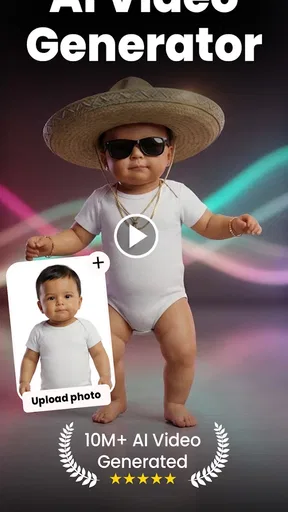
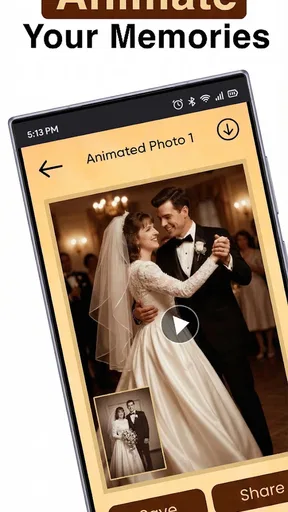
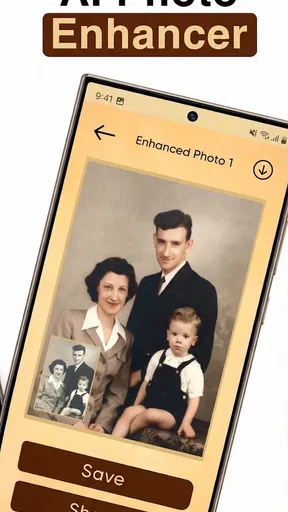
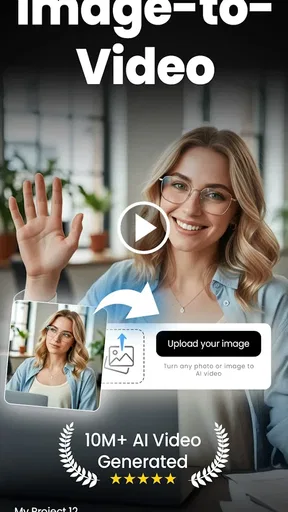
Our Review of VideoAI: AI Video Generator
 Analysis by Appyee
As someone who often wants to do something more interesting with a photo than leave it buried in my camera roll, I find the idea behind VideoAI: AI Video Generator appealing. It is an art and design app from Koi Apps focused on turning still images into short moving creations. That makes it a different proposition from a conventional video editor: the starting point is a picture, not a timeline full of clips. I would look at it as a playful creative tool for bringing a portrait, a family snapshot, or a visual idea to life, rather than as a replacement for a full editing suite.
What to expect from a photo-to-video tool
The most useful way to approach an image animation app is to begin with one clear subject and a simple goal. A face, a pet, or a landscape with a strong focal point gives the animation a better chance of feeling intentional than a crowded image with many competing details. I would choose a copy of the photo first, especially if it is precious, and keep the original untouched. That small habit makes experimentation feel less risky and gives me room to compare the result with the source.
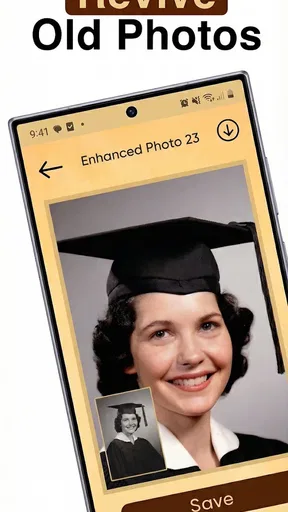
For example, I can imagine using it on a quiet evening to turn an old picture of a grandparent into a short keepsake to share with relatives. I would keep expectations gentle: the point is a brief, imaginative motion effect, not a faithful reconstruction of what happened outside the frame. A result that feels charming to one family member might feel uncanny to another, so I would preview it privately before posting or sending it widely.
Choosing the right image and judging the result
Not every picture is equally suitable for animation. A well-lit photo with a clear subject is a sensible first test; a heavily blurred image, a tiny crop, or a picture with faces partly hidden may leave the effect looking less convincing. When an output feels odd, I would not assume the app has failed across the board. I would try a simpler image and compare, changing one thing at a time so I can tell whether the source photo or the effect is responsible.
There is also a useful creative trade-off here: more movement is not automatically better. A subtle animation can preserve the mood of a still portrait, while a stronger effect may draw attention to artificial motion. I would make two versions if the app allows the workflow I want, then pick the one that suits the audience and purpose. For a private memory, restraint may feel more respectful; for a lighthearted social post, a more noticeable transformation could be the fun.
Getting Started with VideoAI
First off, VideoAI: AI Video Generator is incredibly easy to get going with. After downloading the app, which is available for both Android and iOS, you’re greeted with a clean and user-friendly interface. No need to stress over complicated menus or a steep learning curve. The app is designed to be intuitive, making it perfect for beginners and seasoned video creators alike.
The sign-up process is straightforward, and once you’re in, the magic begins. You can start by uploading your own clips or using the app’s built-in library. The app supports a wide variety of formats, so no worries about compatibility issues. Pretty neat, right?
Readability and navigation in everyday use
In my experience, a simple layout matters most when I am trying to make something quickly and do not want to spend the session hunting through controls. A direct route from choosing an image to previewing an animation is easier to understand than a dense editing workspace. For a first attempt, I would avoid trying to adjust every available choice at once: start with the image, make one creative decision, and check the preview before moving on. That gives beginners a manageable path and makes it easier to notice what each step changes.
The app is free to download, with a 4.3 average from around 3,300 ratings and more than 100,000 installs. It is rated for Everyone, and version 2.4 is listed for devices running Android 7.0 or later. Those details make it approachable for a broad range of Android users, though the store description alone does not establish how every screen behaves with a particular device or personal setup. I would treat the initial session as a chance to see whether the text, controls, and preview are comfortable for me rather than assuming that an uncluttered design suits everyone equally.
Motor and sensory considerations
Photo animation can be a relatively low-pressure creative activity because the core idea is visual and the result can be judged in a preview. Someone who finds precise timeline editing tiring may prefer starting with a single image instead of coordinating many clips and audio tracks. I would still expect some tapping, image selection, and careful review, so it may not suit someone who needs every interaction to be hands-free or who finds touch controls difficult.
The moving result itself deserves consideration too. Motion can be distracting or uncomfortable for some viewers, even when the original image is familiar. If I am sharing an animation with someone sensitive to visual movement, I would ask first or send the still photo alongside it so they can choose. For my own use, I would preview the finished clip in a calm setting and stop if the movement feels unpleasant. That is a practical safeguard, not a claim that the app includes a particular sensory setting.
Situational access and creative trade-offs
This kind of tool is most convenient when I have a few quiet minutes, a photo ready, and enough attention to judge whether the animation looks right. It is less ideal when I am rushing, working in a distracting place, or trying to make a polished video for a deadline. AI-generated motion is better treated as a creative starting point than as a guaranteed shortcut to a finished, publication-ready piece. I would leave time to review the output and decide whether it fits the tone I want.
Compared with a standard video editor, a photo-animation app narrows the task and can feel easier for someone who wants one image to move without building a multi-track project. Compared with simply sharing the original photo, it adds novelty but also changes the mood and meaning of a memory. If I need precise control over timing, captions, several scenes, or a carefully planned sequence, a conventional editor is likely the better fit. If I only want to experiment with a single picture, this more focused approach makes sense.
Cost, privacy, and practical limits
Although downloading it costs nothing, the app offers in-app purchases ranging from $4.99 to $79.99 per item. I would explore the free experience before paying for anything and check the purchase screen carefully so I understand what an item offers and whether it is a one-time purchase. The gap between the lowest and highest listed amounts is wide enough that casual users should avoid tapping through a payment prompt without reading it.
When working with personal photographs, I also think about where and with whom I am comfortable sharing them. I would choose a non-sensitive image for an initial test, particularly if I am unsure about the workflow, and avoid uploading pictures of other people for public use without their permission. That is good judgment for any image tool, not a statement about this app’s handling of files. The same care applies to children’s photos and family archives: a private experiment and a public post are different decisions.
People who want a quick, expressive way to animate a favorite image are the clearest audience for VideoAI. It may also suit a small business owner making an eye-catching visual from a product photo, provided the result is reviewed and does not need exact brand-level motion control. I would skip it if my main need were a comprehensive editor, dependable frame-by-frame adjustments, or a video assembled from many scenes. It is also not the right choice if I dislike AI-style reinterpretations of photographs or would rather preserve a memory exactly as it was captured.
Remaining barriers and who should choose another tool
Ease of use is not the same as universal ease of access. A clean interface can help, but people differ in vision, dexterity, attention, language needs, and tolerance for motion. I would test the actual controls on my own device, enlarge or adjust the device display if that helps, and ask someone I trust to assist with the first export if navigation is tiring. Those workarounds may help some people, but they are not substitutes for controls specifically designed around an individual’s needs.
There is a second barrier that is easy to overlook: the creative result may not match the emotional purpose of the image. An old portrait can carry personal meaning, and an animated version may feel delightful, artificial, or simply wrong depending on the person looking at it. I would not use a generated motion effect as a factual record or present it as footage of an event. For family sharing, a short note explaining that the image has been animated can prevent confusion and keep the original memory clear.
A practical first-session routine is to pick a duplicate of a non-sensitive photo, try one animation, and watch it once without immediately sharing it. Then I would ask three questions: does the motion suit the subject, is it comfortable to watch, and does the file work for the place I plan to use it? This catches common mismatches before I spend money or send something to a group chat. If the output misses the mark, the better next step may be a different source image or a regular photo slideshow, not more effects.
An inclusive verdict on VideoAI
VideoAI is most compelling when I treat it as a focused, experimental way to give a still image a little movement. Its art-and-design focus and free starting point lower the barrier to trying an idea, while the in-app purchases mean I would check costs before committing to extras. The app has a 4.3 average across around 3,300 ratings, but ratings cannot tell me whether the interface will work well for a particular person or whether an animation will feel right for a particular memory.
I would recommend giving it a try if you enjoy visual experiments, have a suitable image, and are happy to review the result with care. I would choose a conventional editor for detailed control, or keep the original photo untouched when authenticity matters more than novelty. For anyone with specific access needs, I would test navigation and motion before relying on it for an important project. That balanced approach lets the app be useful without expecting it to solve every creative or accessibility need.
Features That Make VideoAI Stand Out
Now, let’s dive into the features that make this app a game-changer. To start, the AI-powered editing tools are incredibly smart. You can apply various effects with just a few taps. Want to add some cinematic flair or a dramatic filter? No problem. The app’s AI analyzes your footage and suggests edits that could enhance your video.
One feature I particularly love is the automatic storyboard creation. If you’re like me and sometimes struggle to visualize how your clips should be pieced together, this is a lifesaver. The app uses AI to automatically arrange your clips into a coherent story, complete with transitions and music suggestions.
Speaking of music, you have access to a vast library of royalty-free tunes. This means you can add the perfect soundtrack to your masterpiece without worrying about licensing issues. Plus, the app’s AI can match the music’s tempo to your video’s pace, ensuring everything flows seamlessly.
Editing Made Easy
Editing videos can be a daunting task, but VideoAI simplifies it to a level I didn’t think was possible. The app offers a plethora of tools: trimming, cropping, merging clips, and more, all powered by AI to suggest the best edits. It’s like having a professional editor right in your pocket.
Another cool feature is the text overlay option. Whether you’re creating an informative video or just want to add captions, the app provides a variety of fonts and styles to choose from. The AI even suggests text placements that won’t obstruct important parts of your video.
Sharing and Exporting Your Masterpiece
Once your video is ready, sharing it with the world is a breeze. VideoAI supports direct uploads to popular social media platforms like Instagram, TikTok, and YouTube. The app optimizes your video for each platform’s requirements, so you don’t have to worry about resizing or quality loss.
The export options are flexible, allowing you to choose your desired resolution and format. Whether you want a quick low-res copy for social media or a high-definition version for your archive, the app has you covered.
Final Thoughts
In a world where content is king, VideoAI: AI Video Generator empowers you to create stunning videos without the hassle. It’s intuitive, powerful, and packed with features that cater to both amateurs and pros. Whether you’re making a quick social media post or crafting a detailed project, this app has everything you need.
So, if you’re ready to unleash your creativity and make your video ideas come to life, give VideoAI a try. Trust me, once you dive in, you’ll wonder how you ever managed without it!
Verdict
Strengths of VideoAI: AI Video Generator
- Intuitive interface for easy navigation.
- High-quality video outputs consistently.
- Fast rendering times, even for longer videos.
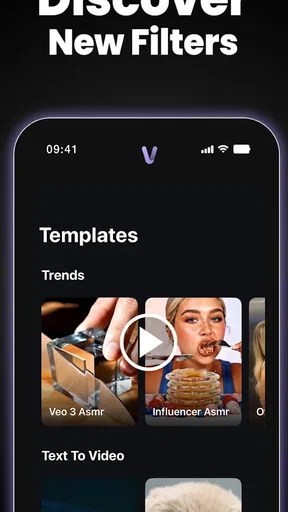
- Extensive template library for diverse needs.
- Seamless integration with social media platforms.
Limitations of VideoAI: AI Video Generator
- Limited free version features available.
- Occasional lags on older devices.
- Requires stable internet for best performance.
- Subscription cost may be high for casual users.
- Customization options can be overwhelming for beginners.
Other Releases by Koi Apps
View All
Adult Coloring Book - Bloom
Art & Design4.2
Similar Picks in This Category
View All
Canva: AI Photo & Video Editor
Canva4.8

PENUP – Drawing-sharing SNS
Samsung Electronics Co., Ltd.4.5

Crafto
Kutumb App4.6

Sketchbook
Sketchbook4.1

ibis Paint X
ibis inc.4.5

Adobe Express: AI Photo, Video
Adobe4.6
Frequently Asked Questions
What is VideoAI: AI Video Generator and how does it work?
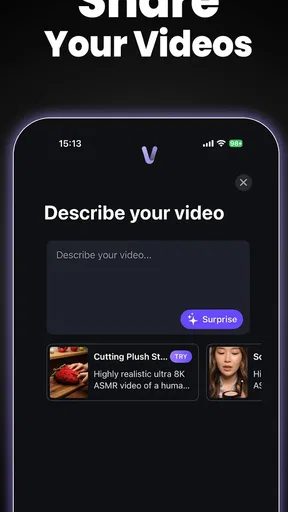
VideoAI: AI Video Generator is an innovative app designed to create videos using artificial intelligence. It leverages advanced algorithms to automatically generate video content from text inputs, images, or other media. Users simply input their desired content, and the app processes it to produce a professional-quality video. This is ideal for content creators who want efficient video production without extensive editing skills.
Is VideoAI: AI Video Generator suitable for beginners?
Yes, VideoAI is very user-friendly and suitable for beginners. The app features an intuitive interface that guides users through the video creation process step by step. With preset templates and easy customization options, even those with no prior video editing experience can quickly create impressive videos. Support and tutorials are available to help users maximize the app’s potential.
What platforms is VideoAI: AI Video Generator available on?
VideoAI: AI Video Generator is available for both Android and iOS devices. Users can download the app from the Google Play Store for Android devices or the Apple App Store for iOS devices. This cross-platform availability ensures that most smartphone users can access the app’s features and start creating videos right away.
Does VideoAI: AI Video Generator support different languages?
Yes, VideoAI supports multiple languages, making it accessible to a global audience. The app is designed to process inputs in various languages, allowing users to create videos in their preferred language. This multilingual support is beneficial for users looking to produce content for diverse audiences around the world.
Are there any in-app purchases in VideoAI: AI Video Generator?
VideoAI offers a range of features for free, but there are premium options available through in-app purchases. These purchases can include access to advanced templates, additional editing tools, or exclusive content libraries. Users can choose to upgrade for a more comprehensive video creation experience, but the free version offers substantial functionality for basic needs.
